Read the text and try to highlight key information to describe how volume shadow copy works.
(Přečtěte si text a označte důležité informace, abyste mohli popsat fungování stínových kopií svazku.)
Configuring Volume Shadow Copy on Windows Server 2008
Windows Server 2008 Volume Shadow Copy is a mechanism whereby the contents of shared folders can be automatically backed up at pre-determined intervals to a shadow volume. Once implemented, shadow copy will backup the previous 64 versions of each file in the shadowed volume and provide users with the ability to restore files from any of the previous 64 versions without administrator intervention, enabling users to independently restore deleted, damaged or overwritten files. In addition to restoring individual files to a previous version, shadow copy also provides the ability to restore an entire volume.
Using Computer Management to Enable and Configure Volume Shadow Copies
Shadow Copy is enabled on a per volume basis. Once configured on a volume, all shared folders residing on that volume will automatically be shadowed. Shadow Copy can be configured either graphically using the Computer Management tool or via the command prompt.
In the graphical view, right click on a volume and select on Properties to launch the properties dialog. In the properties dialog, select the Shadow Copy tab to display the Shadow Copy properties as illustrated in the following figure:
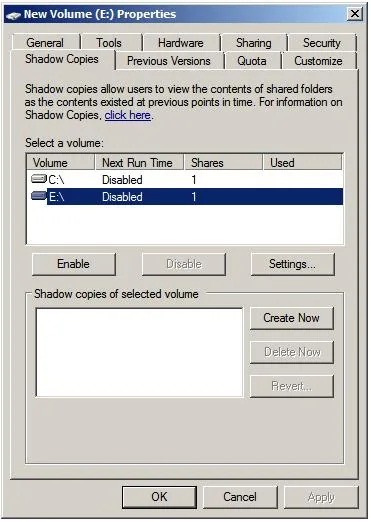
The Select a volume section of the properties dialog lists the volumes present on the local system. Select the volume in this list for which Shadow Copy is to be enabled. With the volume selected click on the Settings button to display the following Shadow Copy Settings dialog box:
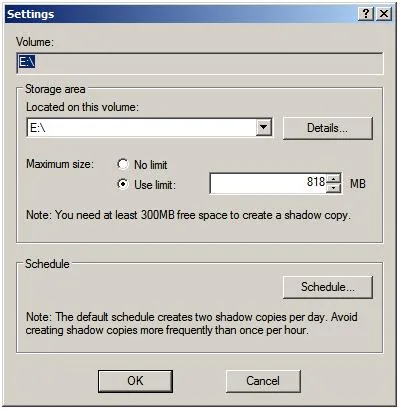
In the Located on this volume specify the volume on which the shadow copies are to be stored. This can be either the current volume or a different volume on the system. The Details button displays free and total disk space information for the currently specified volume. Once a suitable volume for the shadow copies has been selected the maximum size to be made available for the shadow copies may be defined. This can either be set to Maximum size which will use all available space on the specified volume, or capped to a specific size (keeping in mind that a minimum of 300MB is required for the shadow storage volume even before any snapshots are taken).
Schedule the shadow copy snapshots by clicking on the Schedule… button. By default, Windows configures two snapshots each day (at 7:00am and 12:00pm respectively). To remove a currently defined snapshot, select it from the drop down list and click on Delete. To modify a run, select it from the drop down list, modify the settings in the lower section of the dialog and click on OK.
To specify additional schedules, click on the New button and specify the days and time of the snapshot. Note that snapshots can also be configured to occur at user logon, system startup and even when the system is idle. The following screenshot illustrates the Shadow Copy scheduling dialog:
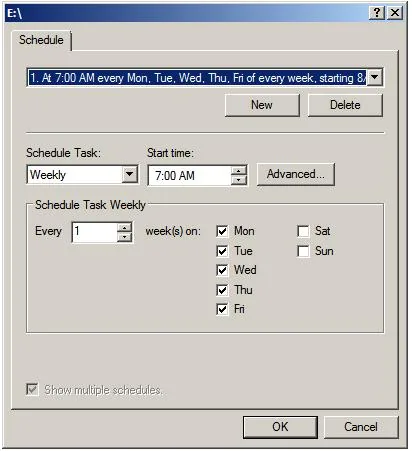
Once the schedules have been configured, click on OK to dismiss the scheduling dialog. Click OK once again in the Settings dialog to return to the Shadow Copy properties panel. To initiate a manual shadow copy now, or at any other time, simply select the volume to be copied from the list in the Shadow Copy properties panel and click on the Create Now button.
Zkuste odpovědět na následující otázky:
- Kolik verzí jednoho souboru je schopen nástroj stínové kopie svazku zazálohovat?
- Může data zálohována pomocí stínových kopií svazku obnovit i běžný uživatel bez pomoci Administrátora?
- Stínové kopie svazku zálohují data pouze ve sdílených složkách, nebo ve všech složkách?
- Kolik volného místa musím na svazku minimálně vyhradit pro stínové kopie?
- Jak je nastaven plánovač ve výchozím nastavení nástroje stínové kopie svazku? Popřemýšlejte, proč je nastaven zrovna takto.